
Section: Tracking · Last updated: October 26, 2026
This guide is based on Apple’s “Mail Privacy Protection & Privacy” legal page (dated December 12, 2025), the iPhone User Guide page “Use Mail Privacy Protection on iPhone”, and the Gmail Help page “Turn images on or off in Gmail”. It is general information; menu names can change between software versions.
Many marketing and newsletter emails contain remote content: images or other files that are not inside the message but are downloaded from the sender’s server when the email is displayed. This content can be a very small image, sometimes called a tracking pixel. When your mail app fetches it, the sender’s server sees the request.
Apple’s privacy page lists what a sender may learn this way: “when and how many times you opened their email, whether you forwarded the email, your Internet Protocol (IP) address”, and other data that can be used to build a profile of your behaviour and learn your location.
1. What each protection changes
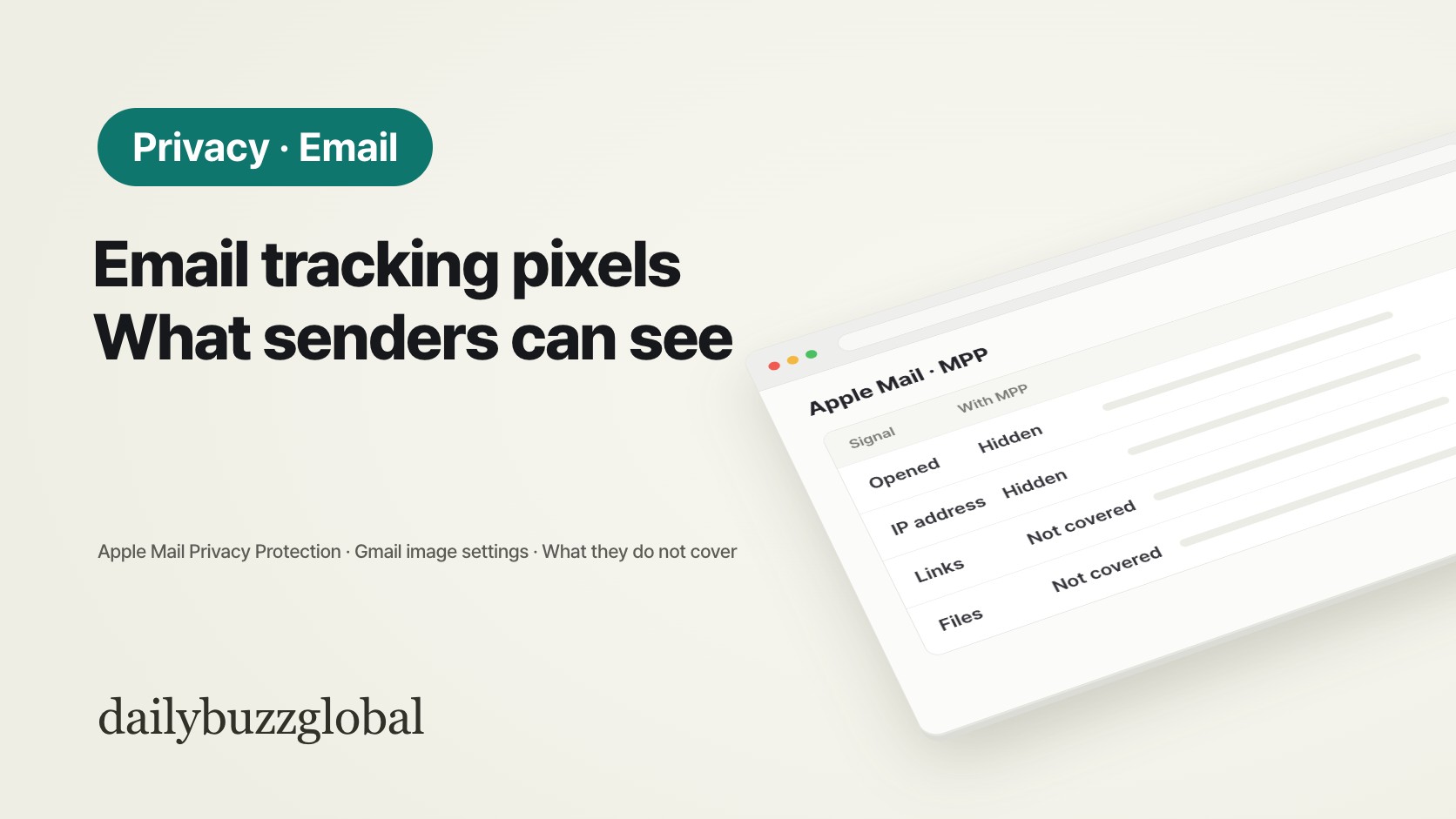
| What the sender tries to learn | Apple Mail with Protect Mail Activity | Gmail image handling |
|---|---|---|
| Whether you opened the email | Hidden: remote content is downloaded in the background when the email arrives, whether or not you open it | Gmail says senders “may know whether you’ve opened an email that has an image” |
| Your IP address and location | Hidden: content is fetched through two separate relays | Gmail says senders cannot use image loading to get information about your computer or location |
| Cookies through the image | Not addressed on the pages used here | Senders cannot use the image to set or read cookies in your browser |
| Links and attachments | Not covered: Apple says the protection does not extend to links or attachments such as PDFs | Not covered by the image settings |
| Where to switch it | iPhone: Settings > Apps > Mail > Privacy Protection | Gmail on a computer: Settings > See all settings > Images |
The difference that matters most: Apple’s feature is designed to hide whether you opened the message, while Gmail’s help page says that open information can still reach the sender sometimes. If you use Gmail and want to avoid that, the help page offers “Ask before displaying external images”, so images load only when you click to show them.
2. How Apple’s protection works
Apple describes two parts:
- Background download. Instead of downloading remote content only when you open an email, Protect Mail Activity downloads it in the background by default when the email arrives in Mail or Mail on iCloud.com. Because every message is fetched this way, a fetch no longer shows that you read it.
- Two relays. All remote content goes through two relays run by different entities. The first knows your IP address but not the mail content; the second knows the content but not your IP address and gives the destination a generalized identity. Apple’s summary is that “no single entity” can identify both you and the content you receive.
The iPhone User Guide adds one dependency: Mail Privacy Protection requires Limit IP Address Tracking to be on. That setting is under Settings > Wi-Fi, in the details of your network.
3. Turning it on
| Where | Path given by the source |
|---|---|
| iPhone, iPad, Vision Pro | Settings > Apps > Mail > Privacy Protection > Protect Mail Activity |
| Mac | Mail > Settings > Privacy > Protect Mail Activity |
| Mail on iCloud.com | Settings > Privacy & Security > Protect Mail Activity (a separate setting) |
| Gmail on a computer | Settings > See all settings > Images > Ask before displaying external images > Save Changes |
On Apple devices, if you turn Protect Mail Activity off, a separate Hide IP Address option still masks your IP address with the same two-relay design. It can be turned off in the same Privacy Protection settings.
4. What these settings do not stop
- Clicking a link. Apple states that its protection does not extend to links.
- Opening attachments. Apple names PDFs and other files as outside the protection.
- Your email address being shared. The address itself can still be passed on. With an iCloud+ subscription, Apple’s Hide My Email creates unique, random addresses that forward to your inbox, so you can give a different one to each form or newsletter.
- Other mail apps. The protection applies in Apple Mail and Mail on iCloud.com. If you read the same mailbox in another app, that app’s own image settings apply.
FAQ
Q. Does Protect Mail Activity work with a Gmail or Outlook account?
Apple describes it as a feature of the Mail app and Mail on iCloud.com, applying to emails you receive there. It does not change how those messages behave when you read them in Gmail’s or Outlook’s own apps.
Q. Can Apple see my emails because of the relays?
Apple’s page states that it “does not learn any information about third-party Mail content”, and that the relay that knows your IP address does not see the content.
Q. Why do newsletters show an “open rate” if this exists?
Open tracking depends on the remote content being fetched when you open the message. With Apple’s background download, a fetch happens when the email arrives, so a sender cannot tell from it whether you read the message.
Q. Gmail sometimes hides images on its own. Why?
Gmail’s help page says that if it thinks a sender or message is suspicious, images are not shown automatically and you are asked whether to display them.
Official sources
- Apple Legal — Mail Privacy Protection & Privacy (apple.com/legal/privacy), page dated December 12, 2025
- Apple Support — iPhone User Guide, “Use Mail Privacy Protection on iPhone”
- Google — Gmail Help, “Turn images on or off in Gmail”
This article is general information. Menu paths are taken from the vendors’ pages at the time of writing and may differ on older or newer software versions.